
Snap Assist for Chums
Firecracker Software LLCWord
4.095.00 Reviews
- Version
- 5.5.8
- Installs
- 10.00K
- Age Rating
- Everyone
Screenshots
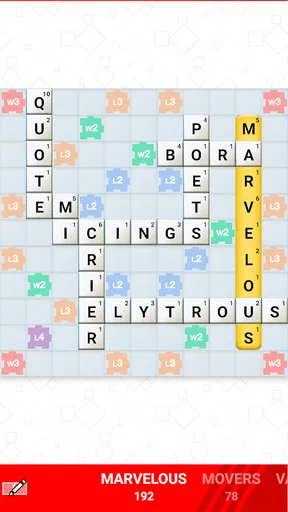
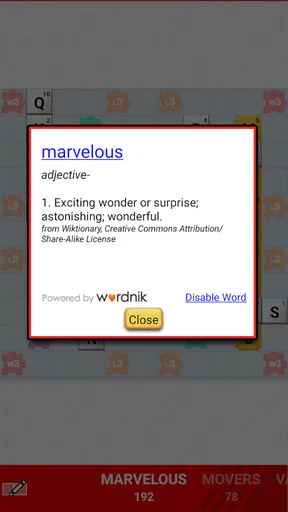
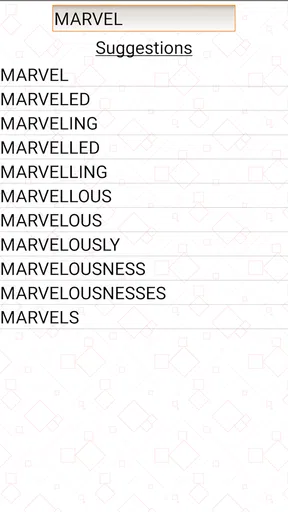
Our Review of Snap Assist for Chums
 Analysis by Appyee
Snap Assist for Chums is a focused word-game utility from Firecracker Software LLC, built around one clear idea: use a screenshot from Word Chums to help study and optimize a crossword position. I found it most useful when I already knew the board was difficult but did not want to leave the game and manually copy every visible letter. Rather than presenting itself as another crossword game, it works as a companion for players who want help interpreting a board they are already looking at.
That narrow purpose is also the reason I would not recommend it to everyone. If you want a complete standalone word puzzle with its own boards, progression, or relaxed daily routine, this is the wrong kind of app. Its value depends on your interest in Word Chums and on whether a screenshot-based helper fits the way you play. For the right person, though, the single capability is practical: it turns a board image into something easier to analyze.
How the screenshot assistant changes a difficult Word Chums turn
The central feature is Snap Assist. In everyday use, the workflow is straightforward: capture the relevant Word Chums board, bring that image into the assistant, and let the tool work from what is visible. The appeal is not merely speed. The screenshot acts as a bridge between the game and the helper, so I do not have to retype a rack, reconstruct crossing words, or keep switching back and forth while trying to remember the layout.
That matters most when the board contains several partially completed words. A normal word finder may help with letters from a rack, but it often leaves the player to decide where those letters can legally fit. A screenshot-oriented tool starts from the visual state of the match. In practice, that makes the assistant feel closer to a board-reading aid than to a simple anagram list.
I would describe the experience as an optimization shortcut for a specific Word Chums situation, not as a replacement for learning vocabulary. It can help reveal playable possibilities, but the quality of the result still depends on the image being readable and on the player understanding what the board is showing. That distinction is important: the app reduces manual work, but it does not remove the need for judgment.
The store summary calls it a crossword learning and optimization tool for Word Chums, and that description matches the practical role I experienced. The learning side appears when I pause to inspect why a word fits, how a crossing changes the available move, or which unusual letter combination I would have missed on my own. The optimization side is more immediate: I can use the board context to look for a stronger move instead of checking isolated words without knowing whether they belong anywhere.
What happens during a normal session
A realistic session begins after I reach a turn where the obvious options are weak. I take a screenshot while the board is fully visible, open Snap Assist, and use that image as the starting point. From there, I review what the assistant can recognize and treat its suggestions as candidates rather than automatic answers. That last step is worth emphasizing because a tool like this is most useful when I verify the placement myself.
Good screenshot habits make a noticeable difference. I keep the board centered, avoid capturing unnecessary screens, and make sure the letters are not obscured by a notification or an open menu. If the image is cluttered or the board is only partly visible, the convenience of the feature drops quickly. The app is designed to save transcription effort, not to rescue an unreadable picture.
One of the less obvious benefits is reduced memory load. When I manually copy a board, I am doing several jobs at once: reading the rack, remembering existing words, tracking bonus squares, and checking possible crossings. A screenshot preserves the original position while I investigate. That makes it easier to compare a safe move with a more ambitious one, especially when I am trying to learn rather than simply finish a turn.
I also found that the feature encourages a better review habit after a match. Instead of asking only whether I won the turn, I can look back at a difficult position and consider which part caused the problem: unfamiliar vocabulary, poor board reading, or failure to spot a useful crossing. That makes the app more valuable for a player who wants to improve decision-making rather than just obtain a quick word.
The best everyday use case
The strongest scenario is a casual Word Chums match during a short break, when I have enough time to think but not enough patience to rebuild the entire board by hand. Imagine opening a turn on a phone, seeing a crowded center with several short words, and holding a rack that seems unhelpful. The obvious move may score something, but the board could contain a better placement through a small opening or a difficult crossing.
In that moment, Snap Assist is more convenient than writing down the position. I can preserve the board visually, inspect the available possibilities, and return to the game with a clearer idea of what deserves attention. The tool is particularly helpful when the challenge is not “what words can these letters make?” but “where can any of these letters go on this exact board?”
There is also a useful learning variation. I can first choose a move without assistance, then use the screenshot to see whether I overlooked a stronger option. That turns the feature into a feedback loop. I am not relying on it for every turn; I am using it to identify recurring mistakes, such as ignoring short connecting words or failing to exploit an open lane.
For someone playing competitively with friends, the trade-off is more complicated. The assistant can make a hard position less frustrating, but using it constantly may reduce the satisfaction of solving the board independently. I would reserve it for analysis, practice, or genuinely stuck turns if the social side of the match matters to me. The best experience comes from deciding in advance whether the goal is improvement, convenience, or pure competition.
Where it differs from ordinary word helpers
Most familiar word-game helpers begin with typed letters. You enter a rack, perhaps add a pattern, and receive words that match. That approach is useful when I already understand the board and only need vocabulary support. Snap Assist takes a different route by making the visual board the starting point. Its distinctive advantage is therefore contextual convenience rather than a broader dictionary experience.
This distinction creates a practical trade-off. A typed word finder can be faster when I only need an anagram, and it may feel more controlled because I decide exactly which letters and pattern to enter. Snap Assist is better when manual entry is the annoying part. If the board is visually complicated, the screenshot workflow can save time; if the board is simple, taking and processing an image may feel like an unnecessary extra step.
I would also choose a traditional crossword app instead when I want a self-contained puzzle experience. Snap Assist does not replace the pleasure of solving a themed grid or completing a daily challenge. Its purpose is tied to an existing Word Chums position, so its usefulness rises and falls with that game. This is a companion for a particular problem, not a general-purpose word entertainment package.
Another difference is how much responsibility remains with the player. A conventional puzzle app usually controls the grid and validates answers inside one environment. Here, I still need to move between the helper and Word Chums, understand the suggestions, and make the final play myself. That extra step is minor during a difficult turn, but it is enough to make the app feel specialized rather than seamless.
Trade-offs, audience, and my recommendation
I look at the trade-offs, intended audience, and recommendation through one practical question: does screenshot-based help make a difficult Word Chums turn more useful, or does it get in the way of the fun? The answer depends on whether you want a study aid or prefer to solve each position unaided. That distinction also sets up the broader question of how goals and progress feel when the app supports an existing game rather than providing its own.
What can make the workflow frustrating
The screenshot approach is convenient, but it is not magic. The image has to contain the information the assistant needs, and I have to capture it at a useful moment. A cropped board, an obstructed rack, or a screen that is difficult to read can turn a quick check into another round of manual correction. Players who dislike taking screenshots or switching between apps may find the central workflow less natural than a simple text-entry helper.
There is also a learning curve in interpreting assistance responsibly. A suggested word is not automatically the best strategic move. Board position, future openings, and the risk of giving an opponent a valuable lane can matter as much as the word itself. I would use the app to widen my view, then make the decision with the same care I would use without it. That is especially important if my goal is to become a stronger player rather than to outsource every turn.
The free price makes it easy to try, but in-app purchases range from $3.99 to $49.99 per item. I would therefore check the purchase flow carefully before treating the app as a long-term tool. The free entry point is helpful for testing whether screenshot assistance actually fits my routine; the paid options make more sense only if I use the feature often enough to justify them.
Its age rating is Everyone, which suits the simple word-game context. The app has been available since June 17, 2016, and the current version is 5.5.8, with Android support from version 7.0 onward. Those details make it accessible to a broad range of Android users, although I would still keep the operating-system requirement in mind before installing it on an older device.
The public response is positive but not overwhelming: Snap Assist holds a 4.0 average from around 318 ratings, with roughly 95 written reviews and over 10K installs. I read that as a sign of a useful niche rather than proof that it suits every Word Chums player. The audience is specific, and a specialized tool can be worthwhile without becoming a universal recommendation.
Who gets the most value
I think the best audience is made up of Word Chums players who enjoy analyzing positions but dislike copying boards by hand. Beginners can use it to understand how crossings and placement affect a move, while experienced players may appreciate the saved effort when a board becomes crowded. It is also a reasonable choice for someone who wants a second look at a turn without opening a completely separate word-game system.
The most useful personal workflow is to attempt the turn first, capture the position only when I am uncertain, and compare my instinct with the assistant’s possibilities. I would keep a mental note of repeated errors: missing short words, overlooking a playable hook, or focusing too much on the rack and not enough on the board. Used this way, the app becomes a study aid rather than a button I press automatically.
I would skip it if I rarely play Word Chums, if I am looking for an offline crossword collection, or if I prefer solving without outside assistance. I would also choose a normal typed word finder when my only question is whether a set of letters can form a word. Snap Assist earns its place when the screenshot itself saves meaningful effort; otherwise, its specialized workflow may be more involved than the problem requires.
My final view is favorable but measured. Firecracker Software LLC has made a focused tool around a real annoyance in Word Chums: translating a busy visual board into something that can be examined efficiently. The feature is most convincing when I am stuck on a complex position and want to learn from the options, not when I need a general crossword game. If your Word Chums turns regularly become a board-reading problem, Snap Assist is worth trying; if they are simply vocabulary puzzles, a conventional word helper will probably serve you better.
Verdict
Strengths of Snap Assist for Chums
- Quickly organizes open windows for a cleaner multitasking workspace.
- Simple controls make window snapping easy for less technical users.
- Helpful for comparing documents, chats, and browser tabs side by side.
- Can reduce time spent manually resizing and repositioning windows.
- Lightweight utility focused on one practical productivity task.
Limitations of Snap Assist for Chums
- May offer limited value if your device already has built-in snapping tools.
- Compatibility can vary across operating systems and desktop environments.
- Some layouts may feel restrictive on smaller screens or low resolutions.
- Advanced users may miss extensive customization and automation options.
- Background permissions may be needed for reliable window management.
Similar Picks in This Category
View All
Word Search - Word Puzzle Game
Bluetile4.8

Word Search Quest - Puzzles
Blackout Lab4.8

CodyCross: Crossword Puzzles
Fanatee, Inc.4.7

Words of Wonders: Crossword
Fugo Games4.9

Wordscapes: Word puzzle game
PeopleFun4.7

Word Search Explorer
PlaySimple Games4.9
Frequently Asked Questions
What is Snap Assist for Chums and who is it designed for?
Snap Assist for Chums is a companion-style app focused on helping users connect, communicate, and organize interactions with their friends or chosen contacts. Its usefulness depends on the features available in the current version, but it is generally aimed at people who want a simple way to stay in touch and manage shared activities. Before downloading, check the store description and screenshots to confirm that its tools match your needs.
Is Snap Assist for Chums free to download and use?
The app may be available as a free download, although some features can require in-app purchases, subscriptions, or other payments. Pricing and access conditions can vary by country, platform, and app version. I recommend reviewing the Google Play Store or Apple App Store listing carefully before installing, especially the sections covering subscriptions, automatic renewal, premium features, and any trial period offered.
What permissions does Snap Assist for Chums require?
The permissions requested by Snap Assist for Chums can depend on the device and the functions you choose to use. A companion or communication app may request access to notifications, contacts, storage, the camera, or microphone. Only grant permissions that are clearly necessary. If the app asks for access that seems unrelated to its purpose, review the privacy policy and your system settings before continuing.
Does Snap Assist for Chums work on both Android and iPhone?
Compatibility depends on whether the developer has released separate versions for Android and iOS. Check the official store page for your device rather than relying on third-party download websites. You should also verify the minimum operating-system version, available storage, and whether certain features require a newer phone. Updates may change compatibility, so keeping your system and the app current is recommended.
Is Snap Assist for Chums safe to download?
The safest way to install Snap Assist for Chums is through the official Google Play Store or Apple App Store, where the publisher information, ratings, permissions, privacy details, and update history can be reviewed. No app should be treated as completely risk-free, so avoid modified APKs and unofficial copies. Use a strong device lock, limit unnecessary permissions, and do not share sensitive information unless you trust the service.
Play our best games!


